
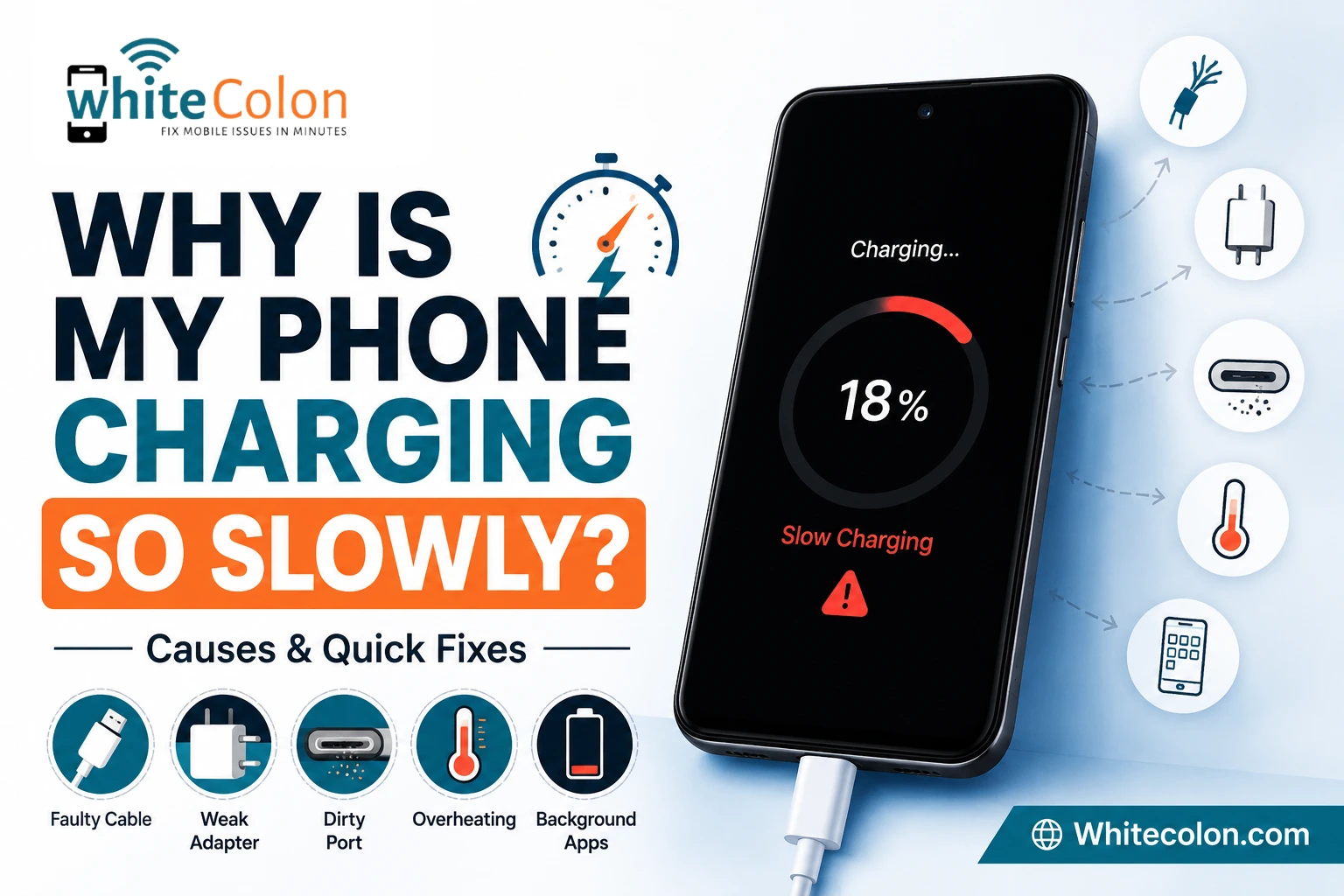
When you plug your smartphone into the charger and leave it for an hour with expecting a full battery and in return you only find it gained a meager 5% or 10%.
When your phone takes hours to charge or holds its charge while plugged in, it interrupts your entire routine. Slow charging is one of the most frustrating mobile issues, but the good news is that it is the rarely a sign that you need to buy a brand new phone.
In this detail guide, we will break down the primary reasons that why your Android phone is charging so slowly and walk you through 8 simple step-by-step solutions to restore the fast charging speeds.
Why Is Your Phone Taking So Long to Charge?
Usually the slow charging stems from one of three categories: faulty hardware accessories, environmental factors (like heating or misconfigured software settings).
Here are the common reasons:
- Rubbish inside the USB Port: Compressed the pocket lint or you can use the dirt blocking physical pin contact.
- Damaged / Low-Quality USB Cable: Internal wire degradation can also the limits the current flow.
- Weak Power Source: Charging via the laptop USB ports or you can use low voltage wall adapters.
- Disabled Fast Charging Toggles: System settings already set default to the standard slow charging type.
- Thermal Throttling: New updated smartphones slow down charging speeds to protect the battery from the overheating.
8 Ways to Fix Slow Charging on Android
So, here are the 8 step by step ways to fix this issue in minutes!
Inspect and Clean the Charging Port
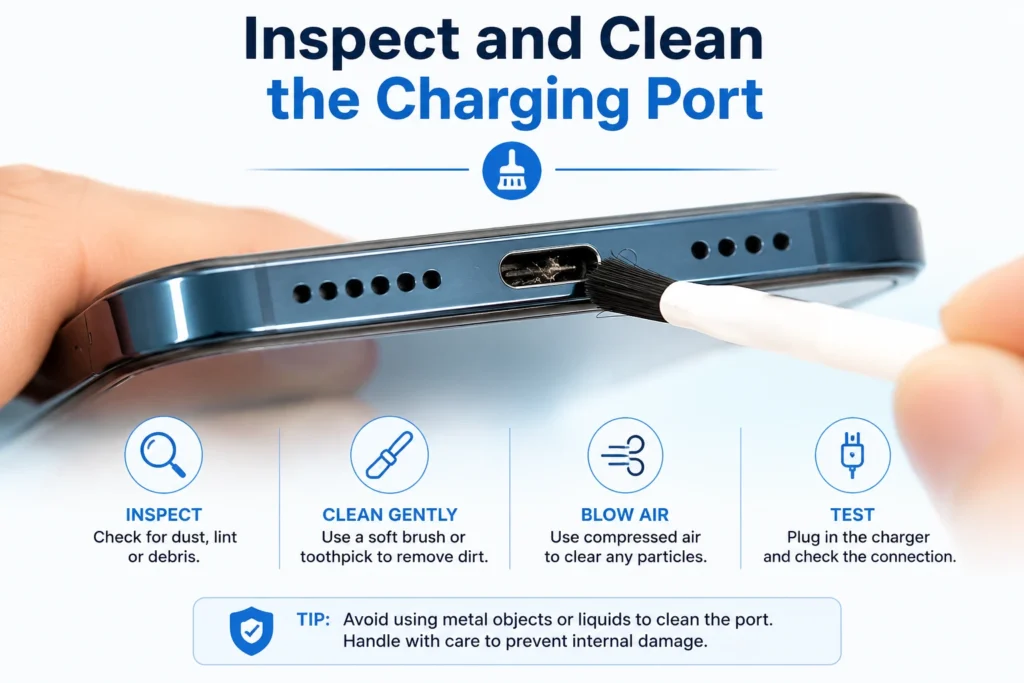
Before buying new accessories or changing settings, check your phone’s USB port. Because smartphones spend hours inside pockets, purses, and backpacks, pocket lint and dust easily collect inside the charging port over time.
When you plug in your cable, the connector compresses this lint against the bottom pins, preventing full electrical contact.
How to safely clean your charging port:
- Power off your smartphone completely.
- Grab a non conductive tool like the wooden toothpick or the small plastic pick (never use metal pins or the needles).
- Gently insert the toothpick into the port and scrape out any compressed lint or dust.
- Blow gently into the port (or use a compressed air can from a distance) to clear out loose debris.
- Plug your cable back in and check if fast charging resumes.
Swap Your USB Charging Cable
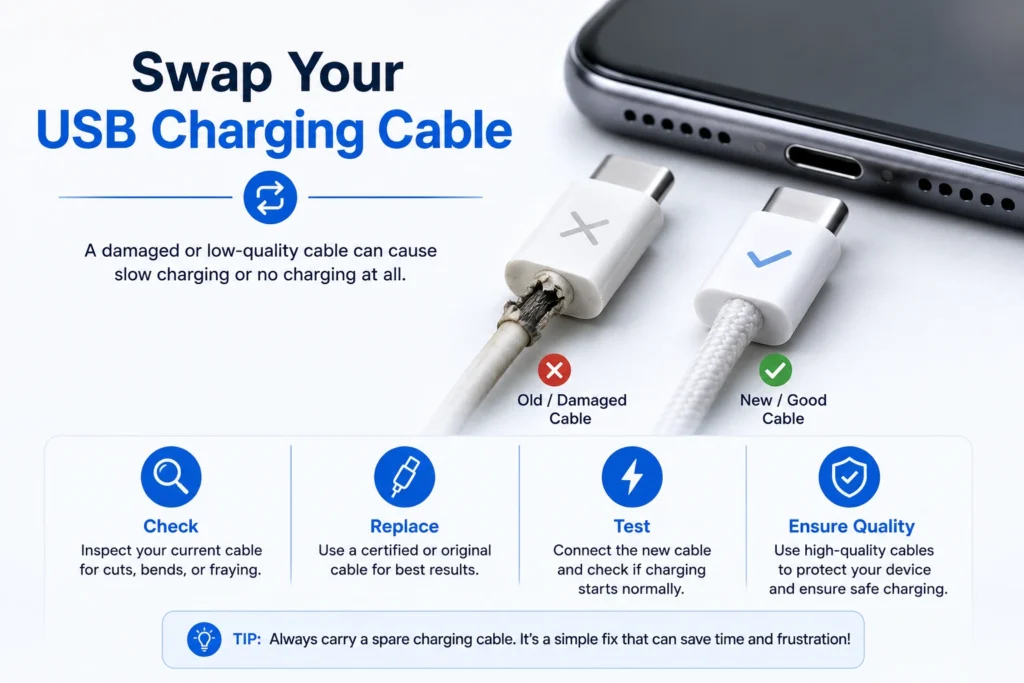
USB cables undergo the constant bending, twisting, and pulling. Even if the cable looks completely fine on the outside, the delicate internal copper wires responsible for the carrying fast charging currents so it can fray or can break.
So the cheap local brands charging cables often lack the gauge thickness which required to transfer higher wattages (e.g., 18W, 33W, 65W+).
- The Test: take an original or the certified high-speed cable (such as Anker, Samsung, or official brand cables) and test it with your phone. If your charging speed instantly improves, your old cable was the culprit.
Check Your Wall Adapter & Power Source
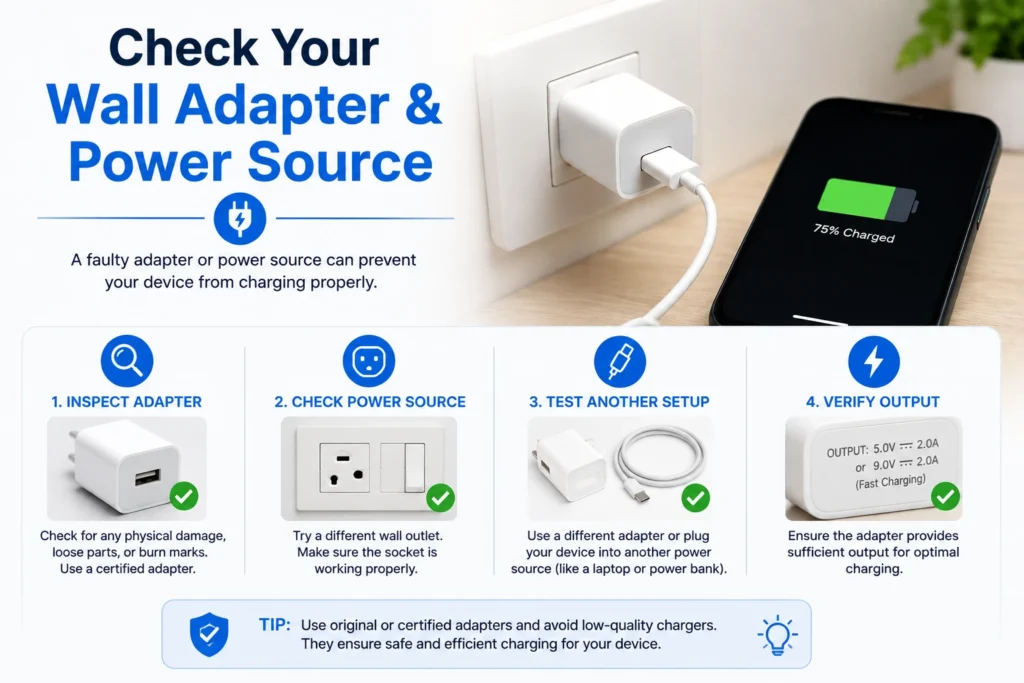
Where you plug your phone then it matters a lot just as much as the cable you use.
If you are charging your phone by plugging it into a laptop USB port, old car adapter, or the multi-port power strip, your phone will charge at a crawl.
- Standard Laptop USB Ports: Typically output only 0.5A to 0.9A (2.5W to 4.5W).
- Standard Fast Wall Bricks: Deliver 2.0A to 5.0A+ (18W to 67W+).
Solution: Always plug your charging adapter directly into the functional wall outlet rather than extension cords or computer ports.
Enable Fast Charging in Settings
Sometimes a software glitch or the power-saving mode automatically turns off the fast charging in your system settings.
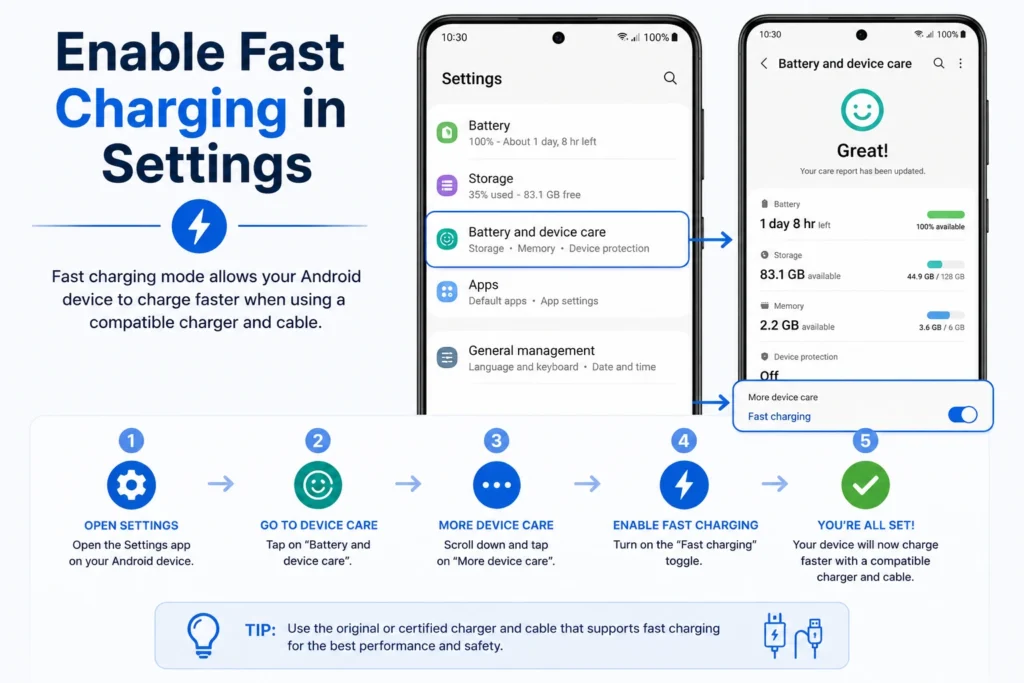
How to enable Fast Charging on Samsung:
- Open Settings and tap Battery.
- Scroll down and tap Charging settings (More battery settings).
- Toggle ON Fast charging and Super fast charging.
How to check on other Android brands (Xiaomi, OnePlus, Realme, Vivo):
- Ensure you are using the official out-of-the-box charger. Many budget and mid-range devices only trigger their proprietary “Turbo” or “SuperVOOC” charging animation when connected to the original factory adapter.
Prevent Thermal Throttling (Cool Down Your Device)
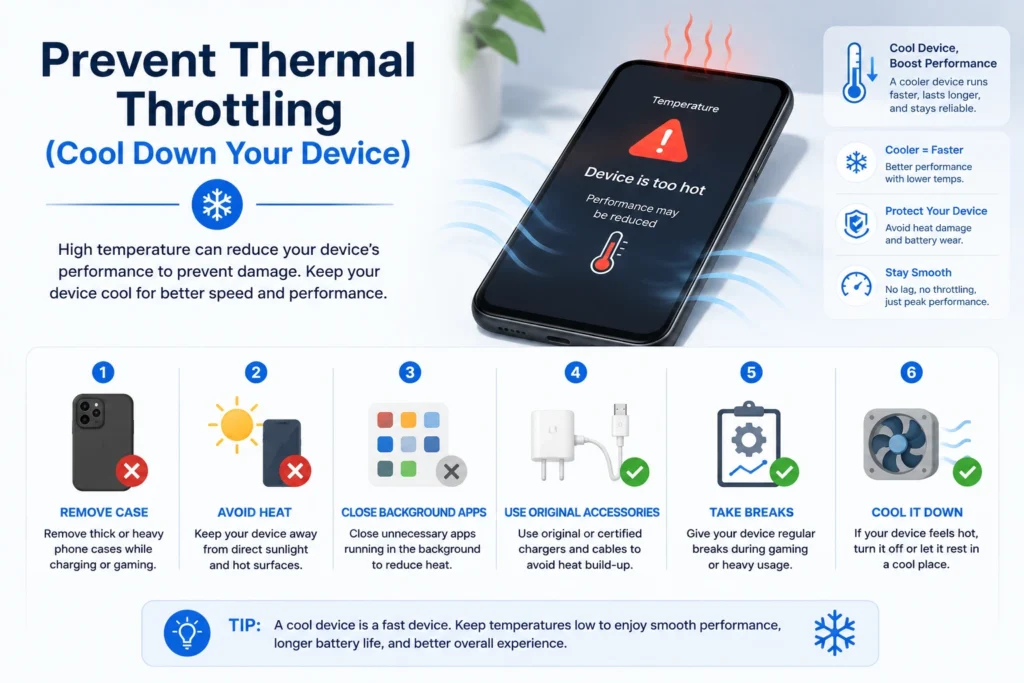
Modern lithiumion batteries are very sensitive to the temperature. So If your phone gets too warm, whether from the ambient heat, heavy gaming or direct sunlight then the operating system automatically throttles the charging speeds to prevent the permanent battery damage or fire hazards.
How to cool down your phone while charging:
- Remove Heavy Phone Cases: Bulky rubber or leather cases trap heat generated during fast charging.
- Stop Using Your Phone While Charging: Gaming, streaming video or using the GPS navigation while plugged in generates double the heat, causing charging speeds to plummet.
- Charge in a Cool Location: Never leave your charging phone under a pillow, on a mattress, or on a sunlit dashboard. Place it on a hard, cool surface like a wooden desk or glass table.
Also Read: How to Fix Battery Drain After Updating New Android Updates
Fix the “Charging via USB” Glitch
Sometimes your android gets confused when you plug your phone into a wall charger and misinterprets the connection as a low power computer USB connection.
How to fix this notification glitch:
- Plug your phone into the charger.
- Swipe down from the top of your screen to open the Notification Shade.
- Look for a system notification that says “Charging this device via USB” or “USB Options”.
- Tap the notification and ensure the option is set to Charge only rather than File Transfer / Android Auto.
Restart Your Phone to Clear Background Memory
If your phone has dozens of rogue applications which are running in the background like the background location tracking, auto-syncing apps or unoptimized software loops so they can drain power almost as fast as your charger inputs it.
Performing a simple system restart clears your device’s RAM, closes stuck background tasks, and allows the charging circuit to route maximum power directly to the battery.
Tip: Press and hold your Power + Volume Down buttons for 7–10 seconds to force a clean system restart.
Calibrate or Replace an Aging Battery
If your phone is more than the 2 to 3 years old and has gone through hundreds of charge cycles, physical battery degradation might be the cause. As lithiumion batteries age, their internal resistance increases wich can causing them to charge much slower and drain faster.
How to check battery health on Android:
- Download a trusted diagnostic tool like AccuBattery from the Google Play Store.
- Use the app over 2 to 3 charge cycles to measure your battery’s estimated remaining health capacity. If your battery capacity is below 75%, it may be time to visit an authorized service center for an official battery replacement.
Conclusion
A phone that takes forever to charge is almost always caused by a dirty port, a worn-out cable, or excessive heat build-up. By following the steps in this guide starting from cleaning your USB port to checking your wall adapter, you should be able to get your fast charging speeds back up and running in no time.
Which of the among solution fixed your phone’s charging speed? Drop your phone’s model and let us kknow that what worked for you in the comments section below!