
Most of the users updating their Android smartphone to the latest system software to bring fresh features, security and smoother performance. However, Millions of users getting a major side effect and that was about rapid battery drain.
If your phone’s battery life also suddenly droping from lasting a full day to dying in just a few hours post update, then don’t worry you are not alone. This is one of the most common issues which was reported on an Android devices. It is also affecting budget phones and flagship devices like Samsung, Xiaomi, OnePlus, Google Pixel, and Realme.
In this guide, We will break down that why your phone battery drains fast after an Android update and walk you through the 8 tested steps to restore your battery life.
Why Does Battery Drain Faster After a System Update in Android?
Before procedding into the fixes, it helps to understand that why this problem is happening. In most of the cases, rapid battery draining immediately after an update does not mean that your physical battery is damaged. Instead of, it is usually affects by behind the scenes of the system activities:
- Background App Indexing: After an update, the Android operating system working hard in the background to re-indexing files, rebuilding app caches and it’s also re-optimizing the system files. This process consumes heavy CPU resources for long time such as 24 to 48 hours.
- Outdated Third-Party Apps: App developers needs some time to update their software for new Android versions. Older, unoptimized apps which was running on a new OS version can get stucked in power loops.
- Corrupted System Cache: Residual files from the previous OS version can also be conflict with the new system files which also causing the background glitches.
- Reset Battery Calibration: The OS needs time to recalibrate its battery reading software to an accurately reports percentage levels.
Now, We hope you know that the root causes so let’s go through the step-by-step fixes to solve this problem.
8 Ways to Fix Battery Drain After an Android Update
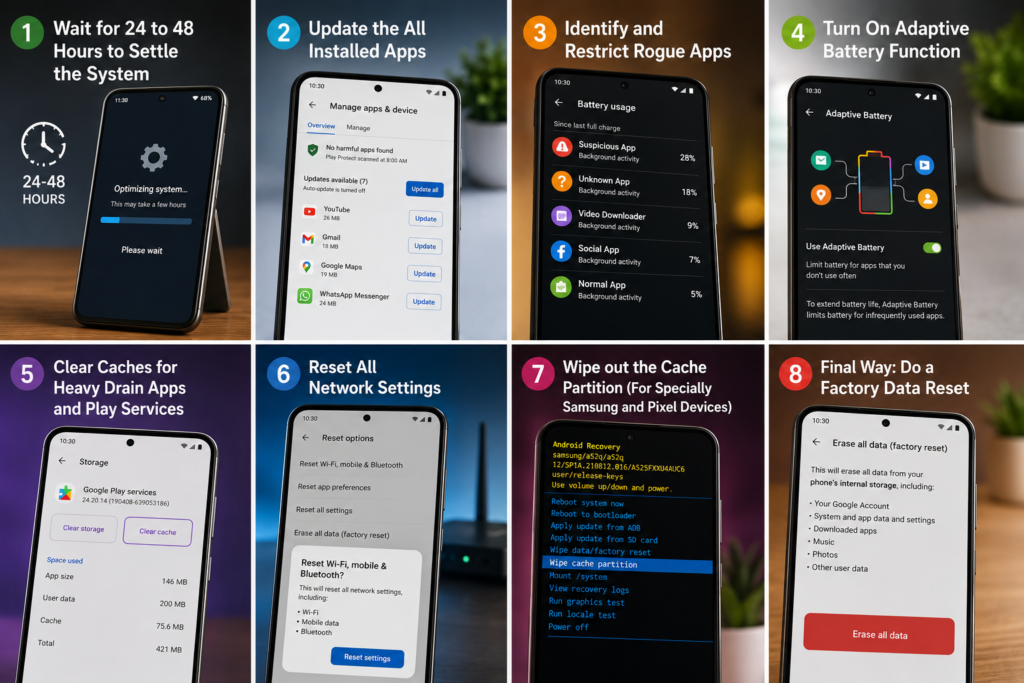
These are the tested 8 ways to fix battery drain issue after updating an android smartphone,
1. Wait for 24 to 48 Hours to Settle the System
2. Update the All Installed Apps
3. Identify and Restrict Rogue Apps
4. Turn On Adaptive Battery Function
5. Clear Caches for Heavy Drain Apps and Play Services
6. Reset All Network Settings
7. Wipe out the Cache Partition (For Specially Samsung and Pixel Devices)
8. Final Way: Do a Factory Data Reset
Read More: iOS Fixes by Whitecolon
Wait for 24 to 48 Hours to Settle the System
The simple solution is stay tuned and stay with patience. During the first 1 to 2 days following a major Android upgrade, the system’s ART (Android Runtime) actively compiles and optimizes the each and every installed applications in the background.
Your phone’s processor consumes more power during this compilation period. Plug your phone into a charger overnight and leave it connected to Wi-Fi and give the operating system 24 to 48 hours to complete its background indexing before making major settings changes. It is for only when it was updated (Don’t charge your phone overnight in daily bases, it is not suggested by whitecolon).
Update the All Installed Apps
Outdated apps are the biggest problem of post update battery draining issue. If an app on your phone was built for an older Android version, it may run the continuously in the background and it is trying to execute incompatible features.
How to update your apps:
- Open the Google Play Store.
- Tap your Profile Icon in the top right corner.
- Select the Manage apps & device.
- Under the Updates available section, tap Update all.
Make sure that to check for updates daily for a week following a major system update, as ofv developers frequently release hotfixes.
Identify and Restrict Rogue Apps
Sometimes a single app is only responsible for your 80% power loss. You can easily find that type of rogue apps using Android’s built-in battery monitor.
How to check app battery usage:
- Open your phone’s Settings app.
- Scroll down and tap on the Battery (or Battery & Device Care on Samsung phones).
- Tap on the Battery Usage.
- Review the list of apps and their percentage of consumption.
If you notice any app (like a messaging app, social media platform or wallpaper app) which is consuming an unusually high percentage of background battery:
- Tap on the app from the list.
- Select Background restriction (or App battery usage).
- Change the setting from Unrestricted or Optimized to Restricted.
Also Read: Why your phone is charging slowly?
Turn On Adaptive Battery Function
Android system includes an AI feature called Adaptive Battery. This feature analise your daily usage of the patterns and automatically limits the background power for apps which you rarely open.
How to enable Adaptive Battery:
- Go to Settings > Battery.
- Select an Adaptive Preferences or More Battery Settings.
- Toggle on the Adaptive Battery.
(Note: If you have a Samsung phone, navigate to Settings > Battery > Background usage limits > Toggle on Put unused apps to sleep).
Clear Caches for Heavy Drain Apps and Play Services
Corrupted caches files left over from the old OS which also can often cause Google Play Services or System UI to glitch and drain the power continuously.
How to clear app cache:
- Open the Settings > Apps (or App Management).
- Tap See all apps and locate Google Play Services.
- Select Storage & Cache.
- Tap Clear Cache (Do not tap Clear Data).
- Repeat this process for any other app showing high battery consumption in your battery usage stats.
Reset All Network Settings
Major system updates can alter the network configuration files. When this happens, your phone’s cellular modem may be continuously searching for 5G/4G signals which is causing major battery drain and device heating too.
Resetting your network settings to restores the Wi-Fi, Bluetooth and Mobile Data configurations to the default without the wiping your phone’s internal storage.
How to reset network settings:
- Open Settings and tap System (or General Management).
- Tap Reset options.
- Select Reset Wi-Fi, mobile & Bluetooth (or Reset Network Settings).
- Enter your lock screen PIN/password and confirm.
(Note: You will need to re-enter your saved Wi-Fi passwords after performing this step).
Wipe out the Cache Partition (For Specially Samsung and Pixel Devices)
If individual single app cache clearing doesn’t work then you can wiping the entire System Cache Partition which clears out the system wide temporary installation files. This process is completely safe and will not delete your personal files, photos or contacts.
How to wipe cache partition via Recovery Mode:
- Turn off your smartphone completely.
- Connect your phone to a PC or Mac via a USB Type-C cable (Required for newer Android versions).
- Press and hold the Power Button + Volume Up Button simultaneously until the brand logo appears.
- Release the buttons to enter Android Recovery Mode.
- Use the Volume keys to navigate down to Wipe Cache Partition.
- Press the Power Button to select it, then confirm Yes.
- Once completed, select Reboot system now.
Final Way: Do a Factory Data Reset
If you have waited 3 to 4 days and also updated all the apps and also tried all the fixes above with zero improvement then a corrupted core OS file during the update process may be the culprit. A fresh software installation via a Factory Reset will solve this.
Warning: Performing a Factory Reset will completely erase all data on your smartphone. Always perform a full backup of your photos, documents, contacts, and WhatsApp chats to Google Drive before proceeding.
How to factory reset your Android phone:
- Go to Settings > System > Reset options.
- Tap Erase all data (factory reset).
- Review the warning, enter your security PIN, and select Erase all data.
Conclusion
Facing a battery drain after an Android update is too much frustrating but in the 95% of cases, it resolves itself within the 48 hours or can be fixed by the updating your applications and restricting rogues background processes.
You can enjoy the new features of your updated Android OS without worrying your daily battery performance by following the all steps in this guide!
Did any of these methods fix your phone’s battery life? Let us know that which step worked for your device model in the comments below!